Paradox SP(+)/MG(+) with E16 quick setup
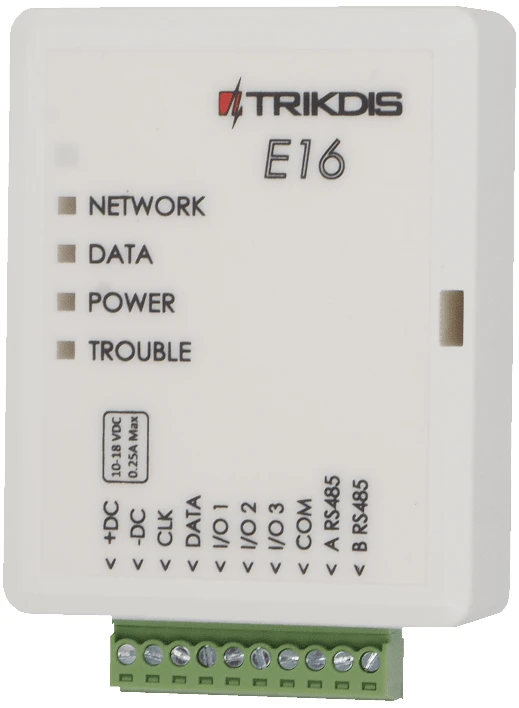
Short steps to connect the E16 communicator to Paradox SP/SP+/MG/MG+ panels, configure E16 for IP reporting, and add the system to Protegus2. Use this together with the full E16 manual for all other settings.
Caution
Install and service only by qualified personnel. Disconnect power before wiring. Unauthorized changes void warranty.
1. Prerequisites
- E16 communicator with LAN connected and a USB Mini-B cable available for configuration.
- Paradox SP/SP+/MG/MG+ panel with keypad access.
EX-CRP2.4cable for the Paradox serial connection.- CMS object ID / account number if reporting to CMS.
- Protegus2 account and communicator MAC / Unique ID.
2. Quick configuration with TrikdisConfig software
- Download TrikdisConfig from www.trikdis.com and install it.
- Open the E16 casing with a flat-head screwdriver.
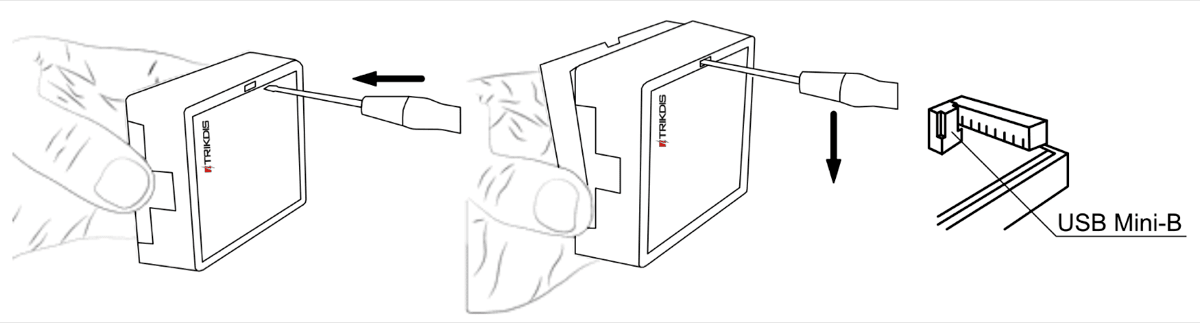
- Connect E16 to the computer with a USB Mini-B cable.
- Run TrikdisConfig. The software will recognize the communicator and open the configuration window.
- Click Read [F4] to load the current settings. If requested, enter the Administrator or Installer 6-digit code.
Complete the subsection that matches the installation:
- Protegus2 app if the system will be controlled remotely by users.
- Central Monitoring Station if the communicator will report to CMS.
- Complete both subsections if the communicator must support both CMS and Protegus2.
2.1 Settings for connection with Protegus2 app
In "System settings" window:
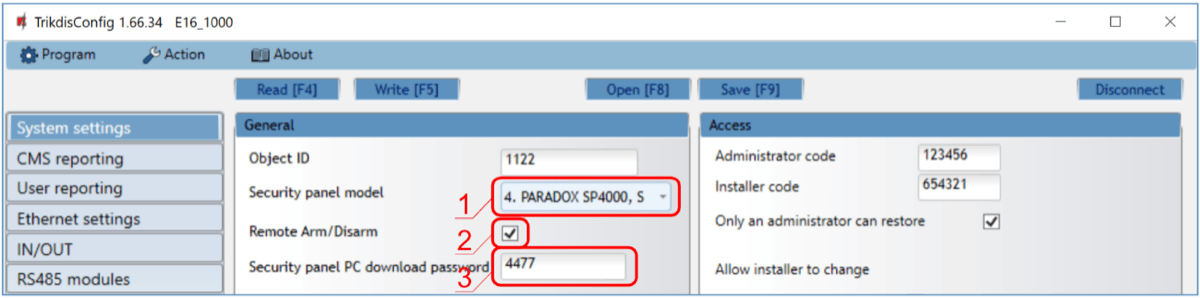
- Select the Security panel model that will be connected to the communicator.
- Select Remote Arm/Disarm if users must control the panel in Protegus2 with their keypad code.
- For direct control of Paradox and Texecom panels, enter the Security panel PC download password. It must match the password set in the control panel.
Note
For direct control to work, the control panel must also be programmed as described in the panel-specific section below.
In "User reporting" window, "PROTEGUS Cloud" tab:
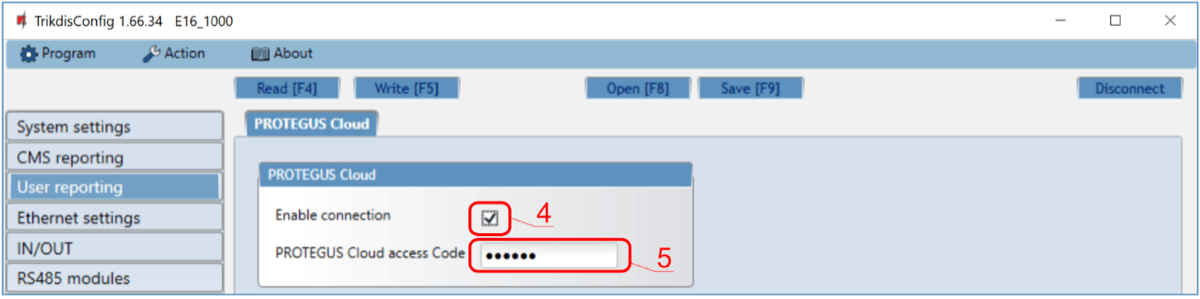
- Tick Enable connection to the Protegus Cloud.
- Change the Protegus Cloud access Code if users should be asked to enter it when adding the system to Protegus2.
After finishing configuration, click Write [F5] and disconnect the USB cable.
2.2 Settings for connection with Central Monitoring Station
In "System settings" window:
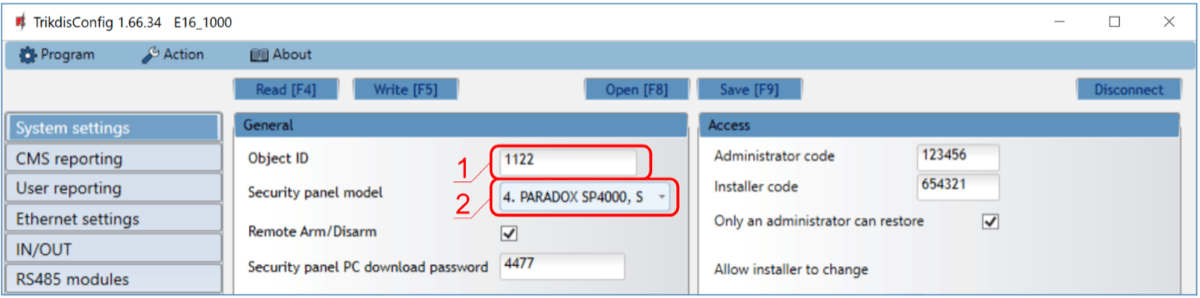
- Enter the Object ID provided by the Central Monitoring Station.
- Select the Security panel model that will be connected to the communicator.
In "CMS reporting" window settings for "Primary channel":
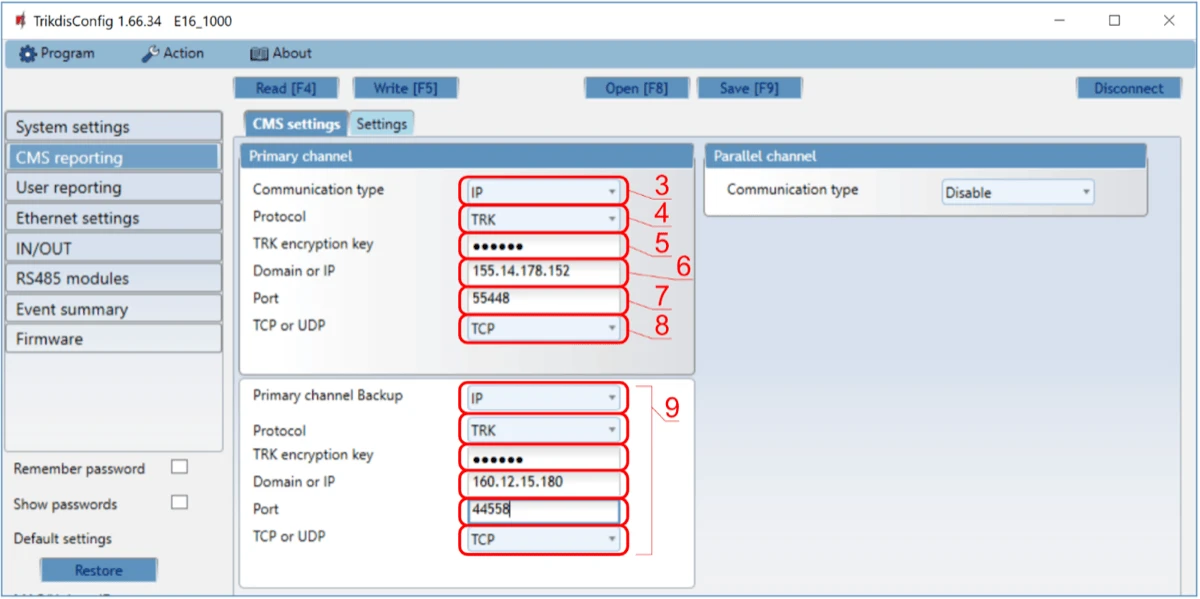
- Set Communication type to IP.
- Select the protocol required by the receiver: TRK, DC-09_2007, DC-09_2012, or TL150.
- Enter the receiver encryption key if the selected protocol requires it.
- Enter the receiver Domain or IP and Port.
- Select TCP or UDP.
- Configure backup and parallel channels if the installation requires redundancy.
Note
If you select a DC-09 protocol, also enter the object, line, and receiver numbers in the Settings tab of the CMS reporting window.
After finishing configuration, click Write [F5] and disconnect the USB cable.
3. Wiring
Connect E16 to the Paradox serial connector with the EX-CRP2.4 cable and power the communicator from the panel:
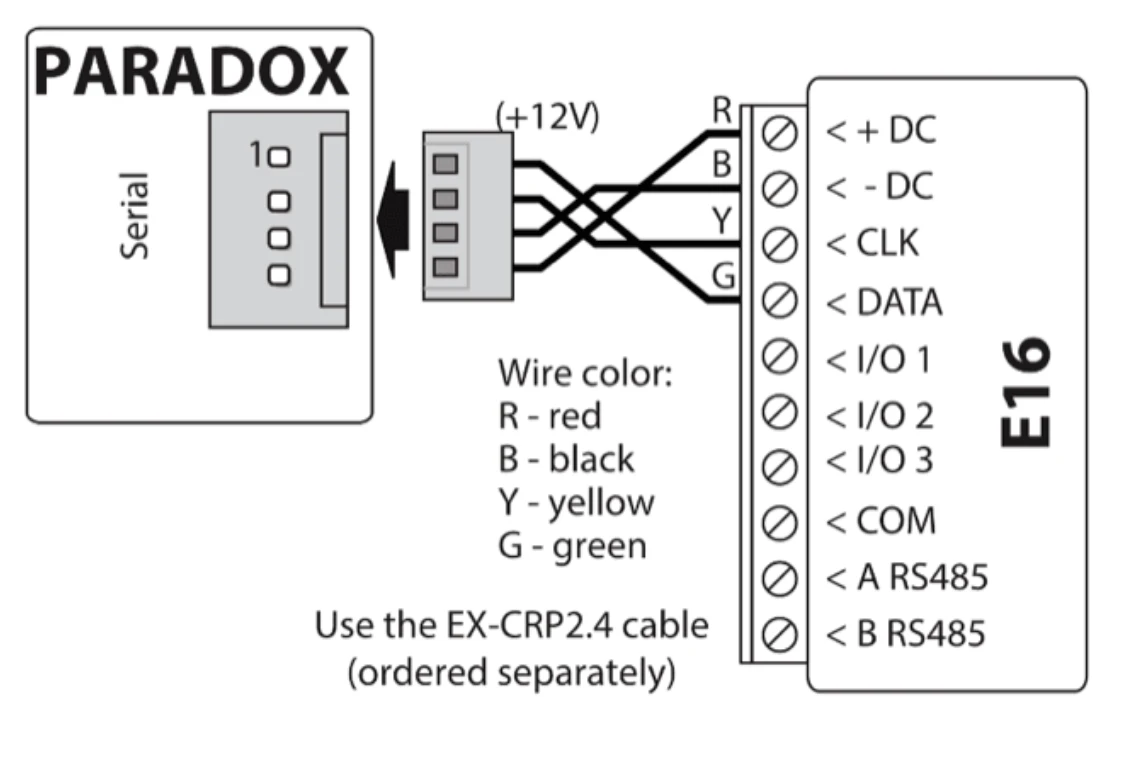
4. Panel programming
Paradox panels do not need extra programming for event reading. Program the panel only if you want direct control from Protegus2:
- Enter installer programming on the keypad.
- Open section
911. - Enter the 4-digit PC download password.
- In TrikdisConfig, make sure the same password is entered in System settings.
5. Add system to Protegus2
- Open Protegus2 and click Add new system.
- Enter the E16 MAC / Unique ID.
- Enter the system name and finish the wizard.
- If you prefer keyswitch control instead of direct control, leave Remote Arm/Disarm unchecked and configure
PGM1in Protegus2 after wiring the E16 output to the panel keyswitch zone. - Wait until the system shows as online.
6. System check
- Arm and disarm the system from the keypad.
- Trigger a test alarm while the system is armed.
- Confirm that events reach the CMS and Protegus2.