Objects
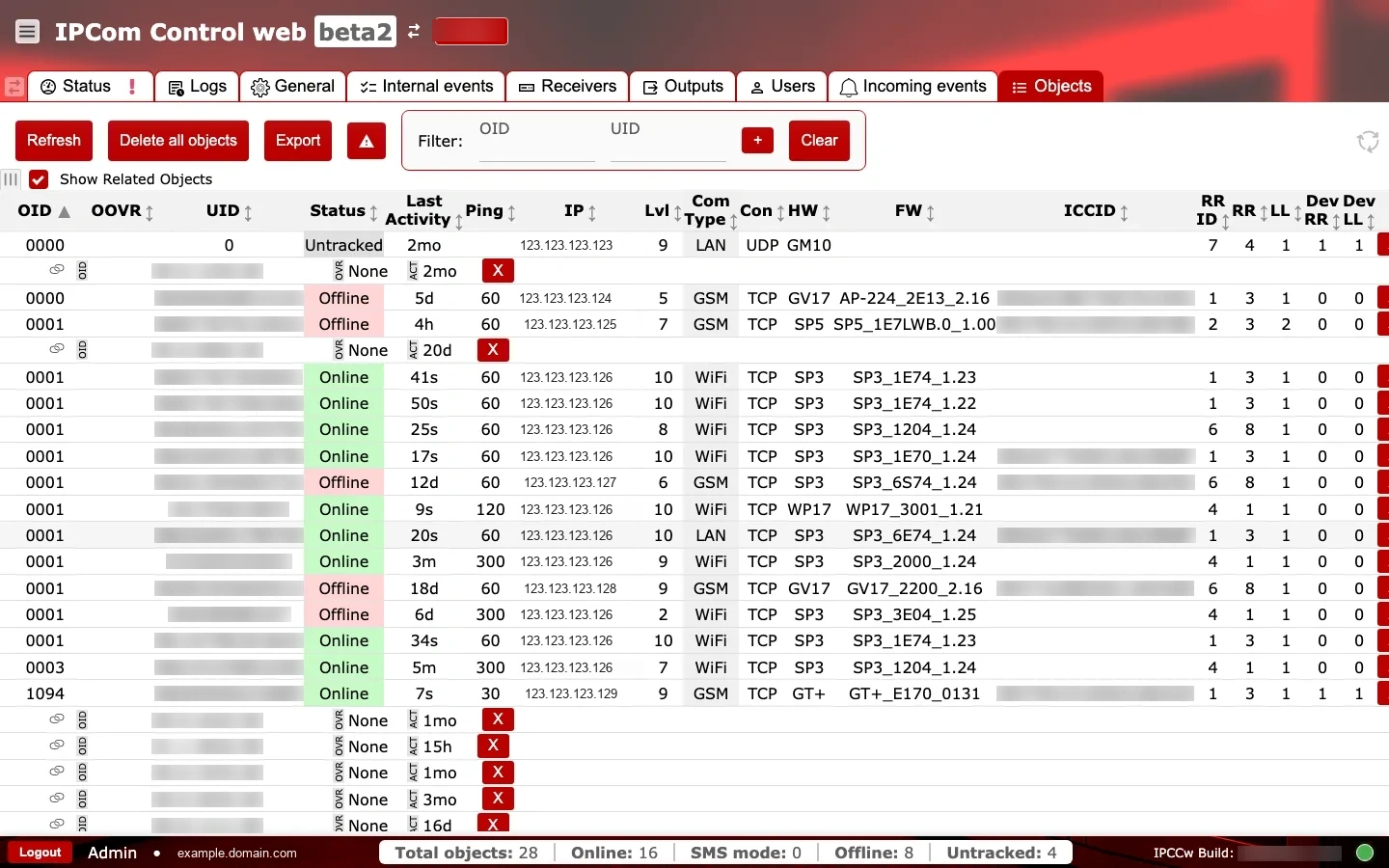
Purpose: Review and manage the list of tracked objects (devices), their status, and connection details.
1. When to use
- When searching for a specific device or verifying its online status.
- When exporting device lists or auditing connectivity issues.
2. Sections and why they matter
2.1 Actions and filters
Refreshreloads the list to show the latest device states.Delete all objectsremoves all objects from the list and should be used only with explicit approval.Exportdownloads the currently filtered list as a semicolon-delimited CSV file namedobjects.csv, with one row per device plus additional rows for each channel and, when shown, each related object. Values are wrapped in double quotes and booleans are written asYes/No. The file carries object and device identifiers — handle and store it accordingly.- Filter fields for
OIDandUIDhelp narrow large lists, with+to apply andClearto reset. Show Related Objectsexpands the list with related entries.

2.2 Object list table
Key columns include:
- Identification:
OID,UID, andICCIDidentify the device and SIM. - Status:
StatusandLast Activityshow availability and the last reported time. - Connectivity:
Ping,IP,Lvl(signal level),Com Type(GSM/WiFi/LAN), andCon(TCP/UDP) reveal transport health. - Device version:
HWandFWhelp relate behavior to firmware levels. - Routing:
RR ID(receiver ID),RR(receiver number), andLL(line number) show routing context;Dev RRandDev LLare device-reported routing values. OOVRis the override OID: an alternative object number that replaces the object's own OID, used to remap an object to the account number your monitoring software expects. Empty or0means no override is applied.
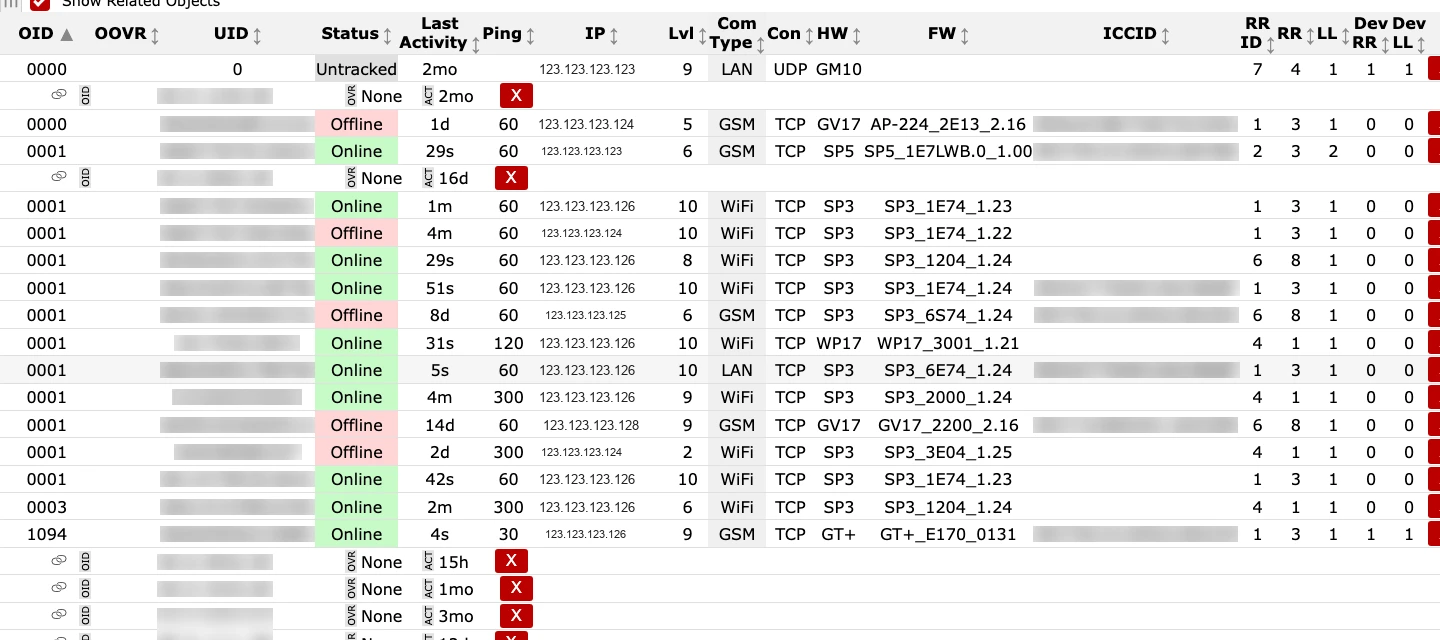
Red X indicators in the Ping column typically mean no recent ping was recorded. For full field definitions, see Glossary in the IPcom navigation.
2.3 Operational checks and actions
Use two quick passes: first monitor object health signals over time, then confirm table values against expected routing and inventory.
Monitor these in runtime:
- Accidental destructive actions (
Delete all objects) during operations. Alert cue: sudden empty inventory. - Stale filter state. Alert cue: expected devices missing from current view.
StatusandLast Activitydivergence. Alert cue: object reported online but stale activity timestamp.- Repeated
PingredXacross the same transport group. Alert cue: channel or path degradation. OOVRvalues changing unexpectedly. Alert cue: an object has been remapped to a different account number, so its events will arrive under that number in your monitoring software.
Confirm before production use:
Refreshis used before incident triage snapshots.- Routing fields (
RR ID,RR,LL,Dev RR,Dev LL) align with receiver/output mapping. - Hardware and firmware fields (
HW,FW) are present for expected managed device types.